![keelearning_logo_white_1_large.png]](https://knowledgebase.keelearning.de/hs-fs/hubfs/keelearning_logo_white_1_large.png?height=40&name=keelearning_logo_white_1_large.png)
Single sign-on explained simply
- The user clicks on the Single Sign-on button on the keelearning login page
- If the user is already logged in to your system, the user is also automatically logged in to keelearning
- If the user is not logged into your system, the login mask of your system appears.

What are the requirements?
The following requirements must be met for single sign-on via OpenID Connect (OIDC):
The user must have an account on the third-party website
The third-party website must operate an OpenID Connect provider
Depending on the OIDC provider, an authentication page appears when the user first logs in, asking them to grant keelearning access to their user data. The text of the authentication page and the process cannot be influenced by us, as this is dependent on the OIDC provider (third-party code).
The .well-known/openid-configuration route must be accessible via the Internet. In the case of Microsoft Azure AD:
# Schema
# [SSO-Domain]/.well-known/openid-configuration

# Beispiel
wget -O - https://login.microsoftonline.com/common/v2.0/.well-known/openid-configuration
What does keeunit need to set up?
OpenID Connect is an open standard. We need the following information from you:
- OpenID Connect Authority URL
- OpenID Connect Client ID
- Name of the login button (e.g. Login via Microsoft)
-1.png?width=670&height=253&name=image%20(2)-1.png)
How do I set it up in keelearning?
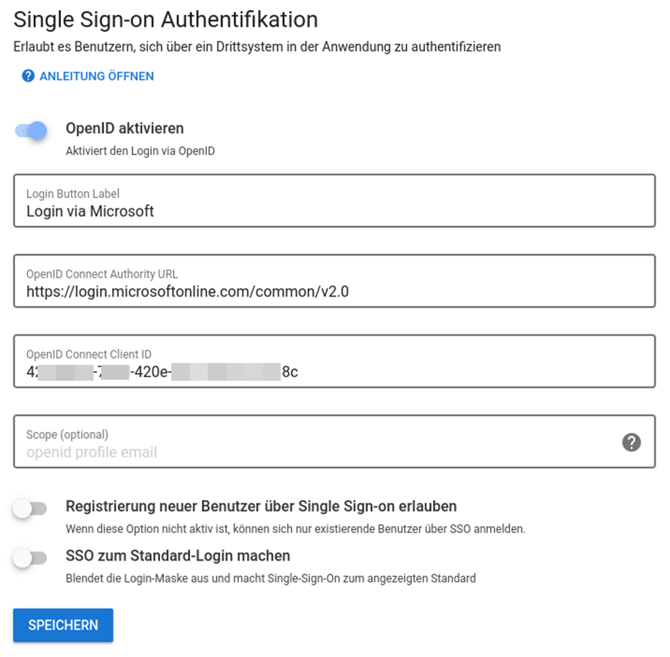
To do this, go to Login & Registration under Settings. Scroll down till you reach the option "Single Sign-on Authentication" Here you can make all the settings yourself:.png?width=670&height=291&name=image%20(3).png)
Where can I find the link to link single sign-on in the third-party app (e.g. Entra ID)?
Would you like to use keelearning's single sign-on and store the corresponding link with a third-party provider?
Then all you have to do is insert the corresponding link – which you can generate directly from keelearning – with the third-party provider.
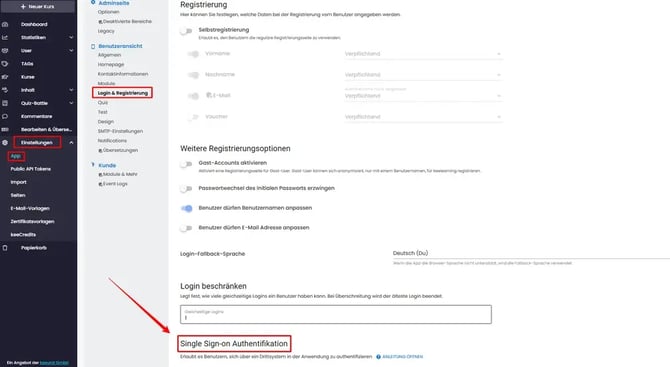
You can find the link in your settings under App > Login & Registration:
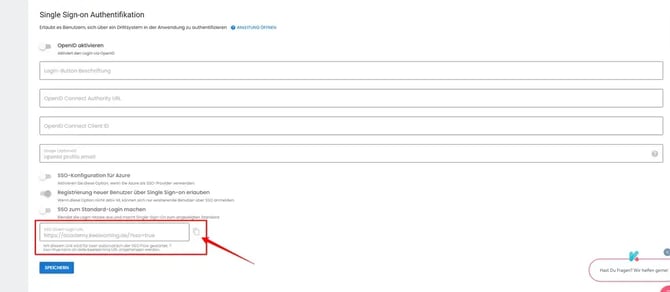
You will now find the link in the field marked in red. Using the ‘copy’ icon (to the right of it), you can copy the link with just one click and then paste it into your system:
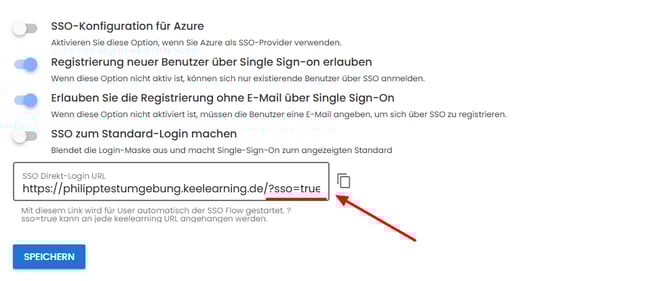
You can insert any link from keelearning here to ensure that your users are directed to the right place:
For example, the link to a specific course or to the home page (dashboard).
It´s important, that the Link has the ending "?sso=true"
What does the setup in Azure AD look like?
The following steps will help you to set up single sign-on via OpenID Connect in Azure AD.
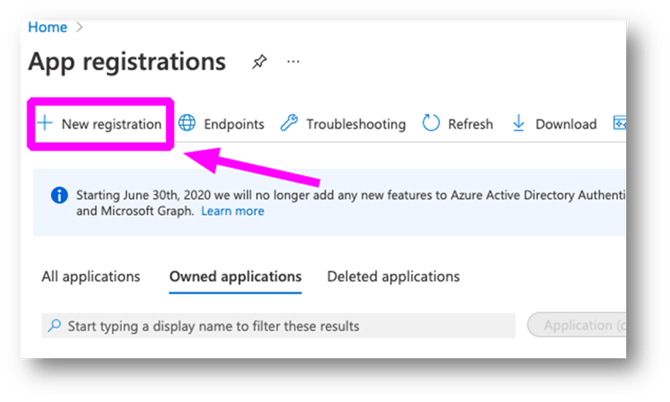
1. create a new app under App registration
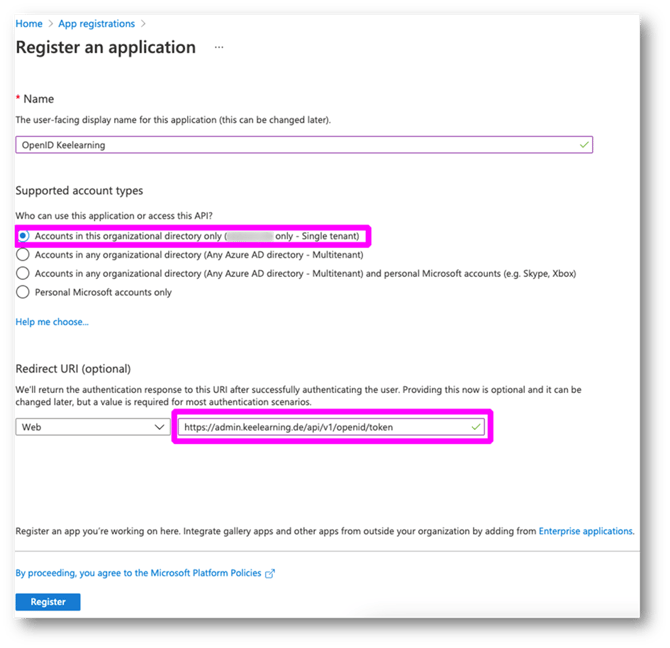
2. Store the Redirect-URI: https://admin.keelearning.de/api/v1/openid/token
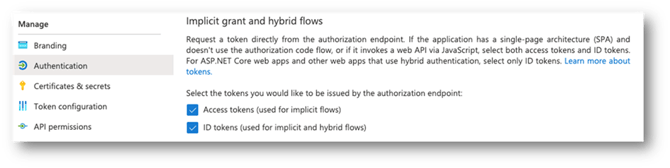
3. Tick both boxes under Authentication
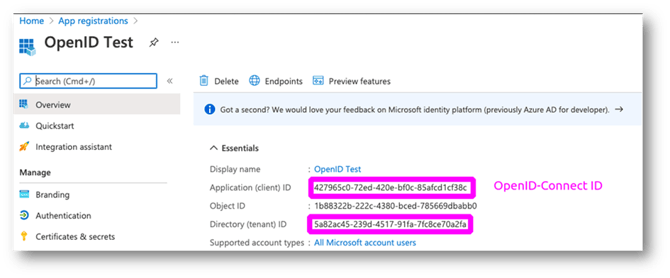
4. Send us the two marked IDs and we will set up SSO in keelearning for you
What do I need to consider if I have two user groups that require two different SSO configurations?
In this case, it is possible to use the multi-client capability. A separate login page and a separate SSO configuration can be stored for each client profile.
If you have any questions about activating/upgrading the multi-client capability, please contact our support team. (Support@keeunit.de)
Which tokens do you use to fill in the username when registering via SSO?
We populate the username with the following tokens from Entra ID in the following order:
1. preferred_username
2. nickname
3. name
4. given_name
In other words, if the token ‘name’ is used, it means that no ‘preferred username’ or ‘nickname’ has been set for the user in Entra ID, or you have not enabled these tokens in Entra ID.